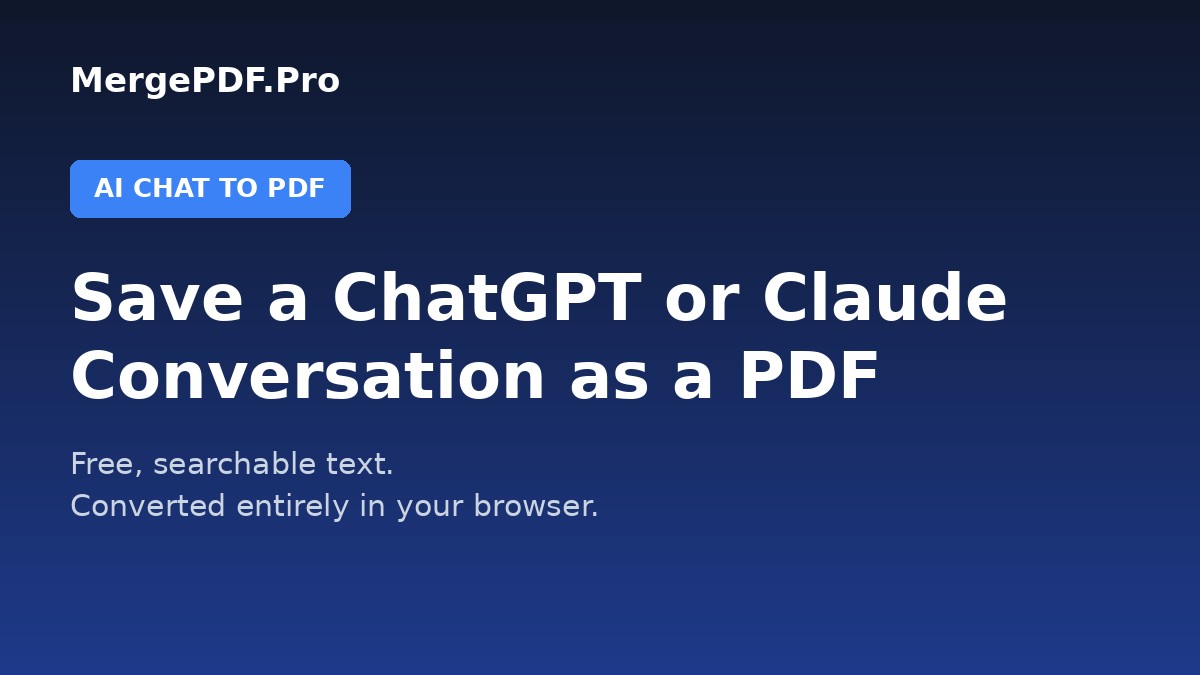
A ChatGPT or Claude conversation disappears into your chat history the moment you close the tab, and there is no built-in way to hand someone a clean, readable copy of it. The fastest fix is MergePDF.Pros AI Chat to PDF tool, which turns a pasted or uploaded transcript into a real PDF with selectable, searchable text, entirely in your browser.
This guide covers how to save a ChatGPT, Claude, Gemini, or any other AI chat as a PDF in under a minute, plus what to expect from the more common workaround people try first.
Key Takeaways
- Paste or upload a transcript at mergepdf.pro/ai-chat-to-pdf to get a downloadable PDF in seconds.
- The text in the output PDF is real, selectable text, not a screenshot, so it stays searchable and copyable.
- Works with transcripts from ChatGPT, Claude, Gemini, or any other AI chat tool, since it just needs the plain text.
- Everything happens in your browser. Your conversation is never uploaded to a server during conversion.
Method: Convert Your AI Chat to PDF with MergePDF.Pro
This works for any AI chat transcript, regardless of which tool you had the conversation in.
Step 1: Copy Your Conversation
Select and copy the conversation text from ChatGPT, Claude, or whichever AI tool you used. Most chat interfaces let you select the full thread, or you can copy it question by question.
Step 2: Open the AI Chat to PDF Tool
Go to mergepdf.pro/ai-chat-to-pdf.
Step 3: Paste or Upload the Transcript
Paste the copied text directly into the tool, or upload it as a .txt file if you already saved it that way.
Step 4: Convert and Download
Click Convert to PDF. The tool formats the conversation and generates a PDF in your browser. Click Download to save it, or request a shareable link if you need to send it to someone else.
The Common Alternative (and Why It Falls Short)
Most people try copying the conversation into Google Docs or Word first, then exporting that as a PDF. It works, but it is slower and often messier: formatting like code blocks, numbered lists, and bold text can break during the paste, and you end up cleaning up the document by hand before exporting. Browser print-to-PDF has a similar problem when applied to a chat page directly, since it captures sidebars, buttons, and other interface elements you did not want in the final file.
Converting the transcript directly with a dedicated tool skips that cleanup step and keeps the output focused on just the conversation.
Frequently Asked Questions
Does this work for both ChatGPT and Claude conversations?
Yes. The tool works with plain text, so it does not matter which AI chat tool the conversation came from, including ChatGPT, Claude, Gemini, and others.
Is the text in the PDF selectable and searchable?
Yes. The PDF is built from real text, not an image of the page, so you can select, copy, and search it like any normal document.
Is my conversation uploaded to a server?
No. The conversion happens entirely in your browser. Nothing is uploaded unless you specifically request a shareable link afterward.
Can I convert a long conversation?
Yes. There is no practical length limit, though very long conversations may take a moment longer to render into pages.
Does formatting like code blocks and lists carry over?
Basic structure like line breaks and paragraphs is preserved. For a conversation that is mostly code or needs richer formatting, consider the reverse tool, which extracts text from a PDF into a clean, ready-to-paste prompt.
Conclusion
Saving an AI chat as a PDF does not need to involve copy-pasting into Word and fixing formatting by hand. MergePDF.Pros AI Chat to PDF tool turns a transcript into a clean, searchable PDF in one step, free, directly in your browser.
Ready to save your conversation? Open MergePDF.Pro and paste your transcript now.