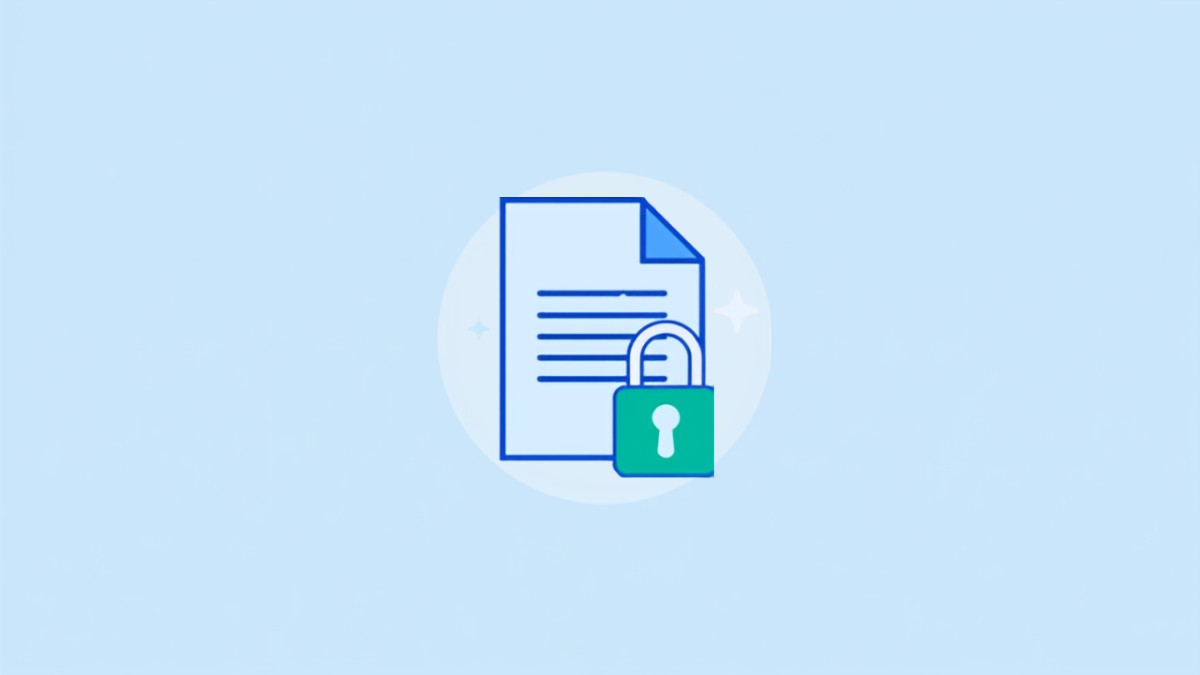
You can add a password to a PDF for free in under a minute using MergePDF.Pro in your browser, no software or account needed. This is the fastest option whether you are protecting a tax return, a contract, or any file with personal information before emailing it.
This guide covers how to password-protect a PDF using a free browser tool, plus what to do if you need to remove a password from a PDF you already have.
Key Takeaways
- MergePDF.Pro adds password protection to a PDF in the browser, free, in under a minute.
- The password uses standard PDF encryption, supported by Adobe Reader and every major PDF viewer.
- If you lose the password, there is no way to recover it, so save it somewhere safe.
- Protecting a PDF is different from digitally signing one; a password only restricts who can open the file.
How to Password-Protect a PDF
This works in any browser, on Windows, Mac, or mobile, since nothing needs to be installed.
Step 1: Open the Protect PDF Tool
Go to mergepdf.pro/protect-pdf.
Step 2: Upload Your PDF
Click Upload OR Drag Files and select the file you want to protect.
Step 3: Set a Password
Enter the password you want to require to open the file. Choose something you will remember, since it cannot be recovered later.
Step 4: Protect and Download
Click Protect PDF, then download the encrypted file. Anyone opening it will now be asked for the password first.
Removing a Password From a PDF You Already Own
If you have a password-protected PDF and want to remove the password (because you know it and are tired of typing it, for example), the process is separate.
Step 1: Open the Unlock PDF Tool
Go to mergepdf.pro/unlock-pdf.
Step 2: Upload the Protected File
Upload the PDF and enter its current password when prompted.
Step 3: Download the Unlocked Version
The tool removes the password and gives you a version that opens without one.
Choosing the Right Approach
| Situation | What To Do |
|---|---|
| Sending a sensitive document by email | Add a password before sending |
| Archiving a file only you will open | Password optional, but adds a safety layer |
| You know the password and want it removed | Use Unlock PDF |
| You forgot the password | Cannot be recovered; you will need the original unprotected file |
Frequently Asked Questions
Is PDF password protection actually secure?
Yes, when using standard encryption as MergePDF.Pro does. It is the same protection method built into Adobe Acrobat and recognized by every major PDF reader.
What happens if I forget the password?
There is no recovery option. You would need to start from the original, unprotected copy of the file.
Does password-protecting a PDF also stop copying or printing?
A basic password controls who can open the file. Restricting printing or copying requires additional permission settings, which are a separate feature from the open password.
Can I remove a password if I do not remember it?
No. Removing a password requires knowing the current one. Without it, the file cannot be unlocked.
Is it safe to upload a sensitive PDF to add a password online?
Yes. The file is transferred over an encrypted connection and deleted automatically from the server once processing is complete.
Conclusion
Adding a password to a PDF is one of the simplest ways to protect a sensitive document before sharing it, and it takes under a minute with MergePDF.Pro, free, in your browser.
Ready to protect your PDF? Open MergePDF.Pro and upload your file now.