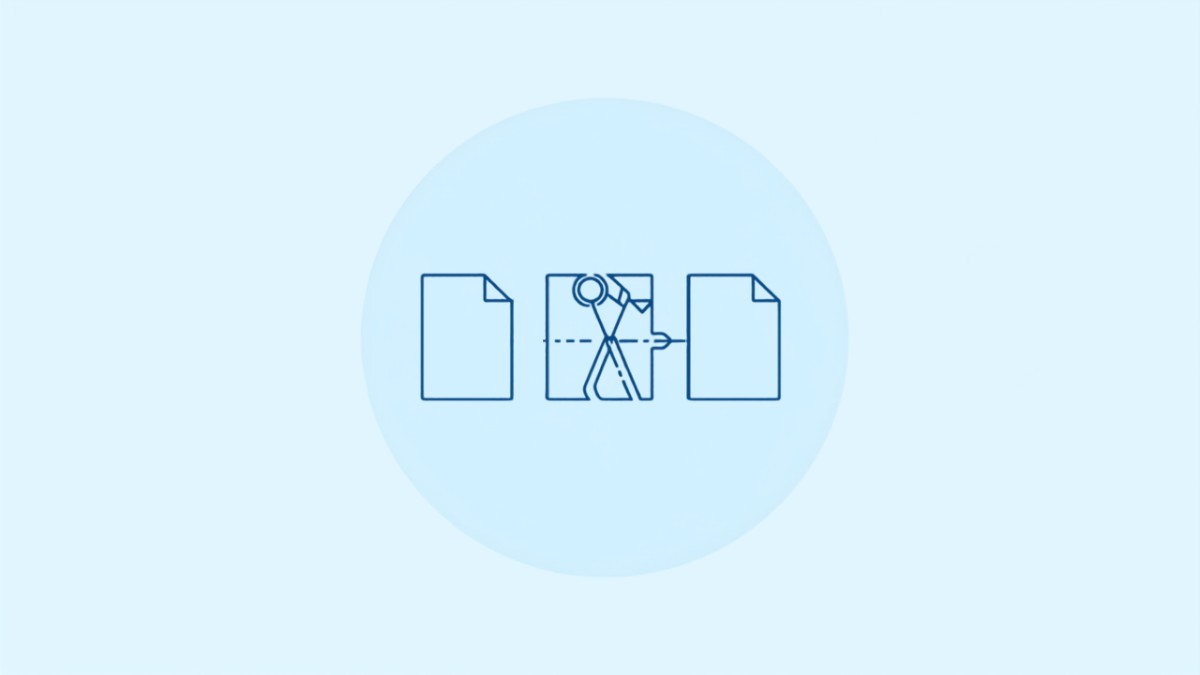
Windows has no built-in way to split a PDF into separate files or pull out specific pages, so the fastest free option is a browser tool like MergePDF.Pro. No software to install, and it works on any version of Windows.
Whether you need to pull a single page out of a scanned document, break a long report into chapters, or separate an invoice from a larger PDF, here is how to do it on Windows without paying for Adobe Acrobat.
Key Takeaways
- MergePDF.Pro splits a PDF in the browser in seconds, free, with no account or install required.
- You can split by page range or extract individual pages, depending on what you need.
- Windows has no native PDF splitting tool, unlike macOS which has Preview.
- Multiple output files are automatically bundled into a single zip download.
Method 1: Split a PDF on Windows Using MergePDF.Pro
This works in any browser (Chrome, Edge, Firefox) on any version of Windows, with nothing to install.
Step 1: Open the Split PDF Tool
Go to mergepdf.pro/split-pdf.
Step 2: Upload Your PDF
Click Upload OR Drag Files and select the PDF you want to split.
Step 3: Choose Your Split Points
Select the page ranges or individual pages you want extracted into separate files.
Step 4: Split and Download
Click Split PDF. If you extracted more than one section, the files download together as a zip.
Method 2: Extract Just One Page
If you only need a single page out of a larger PDF rather than splitting the whole document, the process is nearly identical.
Step 1: Upload the PDF
Use the same split-pdf tool and upload your file.
Step 2: Select Only the Page You Need
Choose just the single page number instead of a range.
Step 3: Download the Single Page
The result downloads as its own standalone PDF, ready to send or archive separately.
Choosing the Right Approach
| Situation | What To Do |
|---|---|
| Splitting into a few large sections (e.g. chapters) | Split by page range |
| Pulling out a single page (e.g. one invoice) | Extract that page only |
| Need every page as its own file | Split by page range, one page per range |
| Multiple output files needed | Download as zip automatically |
Frequently Asked Questions
Does Windows have a built-in PDF splitter?
No. Unlike macOS, which has some PDF page management inside Preview, Windows has no built-in tool for splitting PDFs. A browser tool is the simplest free option.
Is there a limit to how many pages I can split at once?
MergePDF.Pro has no stated page limit, so large documents can be split in one pass.
Will splitting a PDF reduce its quality?
No. Splitting only separates pages into new files, it does not re-compress or alter the content of each page.
Can I split a password-protected PDF?
You will need to unlock the PDF first using a tool such as Unlock PDF, then split the unlocked file.
Is it safe to upload a sensitive document to split it online?
Yes. Uploads happen over an encrypted connection, and both the original file and the split results are automatically deleted from the server after processing.
Conclusion
Splitting a PDF on Windows does not require installing Adobe Acrobat or any other paid software. MergePDF.Pro handles it directly in the browser, free, whether you need one page or a dozen sections.
Ready to split your PDF? Open MergePDF.Pro and upload your file now.