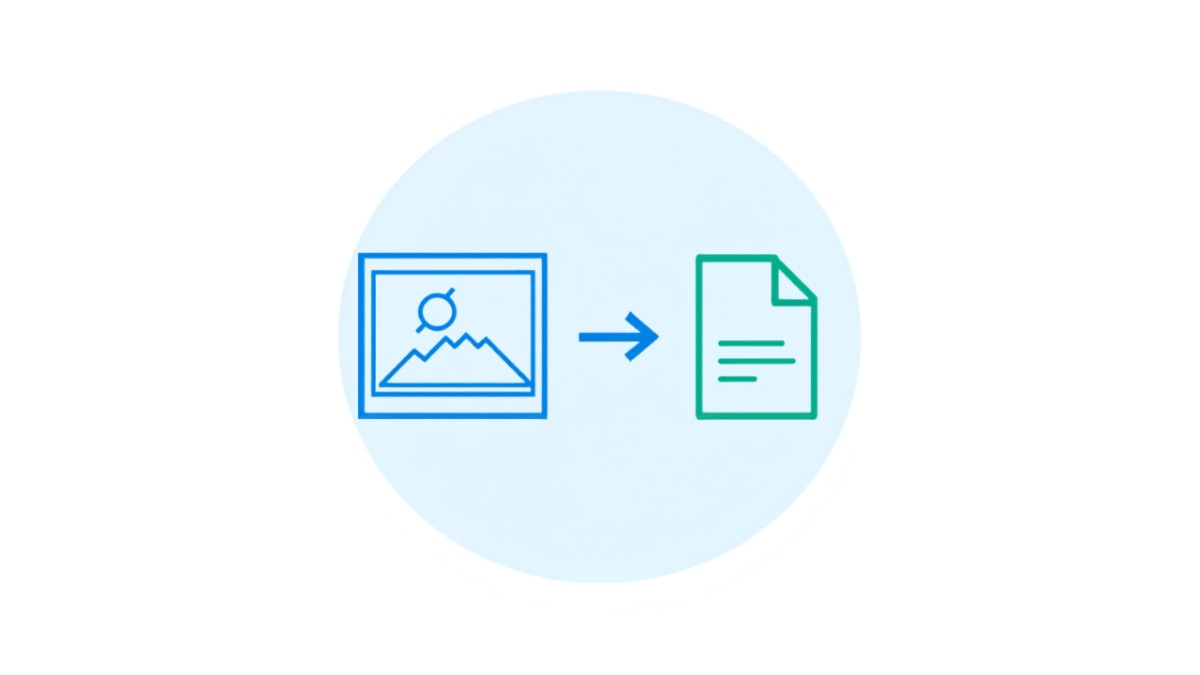
The fastest way to turn photos into a PDF on your phone is uploading them directly to MergePDF.Pro in Safari or Chrome: select the photos from your camera roll, arrange the order, and download a single PDF in seconds. No app to install on either iPhone or Android.
This is the common situation behind most JPG-to-PDF searches: you photographed a few pages of a paper document, a receipt, or a whiteboard, and need to send them as one clean PDF instead of several separate photos.
Key Takeaways
- MergePDF.Pro converts photos to PDF directly in your phone's browser, free, on both iPhone and Android.
- You can select multiple photos at once and arrange their order before converting.
- iPhone's Notes app can also scan and export as PDF, but only for documents scanned through the app itself, not existing photos.
- Android has no universal built-in JPG-to-PDF feature across all devices, so a browser tool is the most reliable option.
Method 1: Convert Photos to PDF Using MergePDF.Pro (iPhone and Android)
This works identically on both platforms since it runs in the browser, not as an installed app.
Step 1: Open MergePDF.Pro in Your Phone's Browser
Go to mergepdf.pro/jpg-to-pdf in Safari or Chrome.
Step 2: Select Your Photos
Tap Upload OR Drag Files and choose the photos from your camera roll or gallery. You can select several at once.
Step 3: Arrange the Order
Drag the thumbnails into the order you want them to appear in the final PDF.
Step 4: Convert and Download
Tap Convert Files, then download the finished PDF straight to your phone.
Method 2: Using iPhone's Notes App (Scanning Only, Not Existing Photos)
If you have not taken the photo yet, iPhone's Notes app can scan a document directly and export it as a PDF, with automatic edge detection and cropping.
Step 1: Open a New Note and Tap the Camera Icon
Choose Scan Documents, then point your camera at the paper.
Step 2: Capture and Adjust
The app auto-detects the page edges. Adjust the corners manually if needed, then tap Keep Scan.
Step 3: Share as PDF
Once saved in the note, tap the share icon and choose to export it as a PDF.
Limitation
This only works for pages you scan through the app itself. It cannot convert photos you already have saved in your camera roll, MergePDF.Pro handles that case instead.
Choosing the Right Method
| Situation | Best Method |
|---|---|
| Photos already taken and saved in your gallery | MergePDF.Pro |
| Need to scan a fresh document right now, on iPhone | Notes app scanner |
| On Android, any situation | MergePDF.Pro |
| Combining multiple photos into one ordered PDF | MergePDF.Pro |
Frequently Asked Questions
Can I convert more than one photo into a single PDF?
Yes. Select multiple photos at once, and MergePDF.Pro combines them into one PDF in whatever order you arrange them, with each photo becoming its own page.
Does converting a photo to PDF reduce its quality?
No. The image is placed into the PDF at its original resolution, it is not recompressed or downscaled.
Do I need to install an app on Android?
No. MergePDF.Pro works in any Android browser without installing anything.
Can I convert screenshots the same way as photos?
Yes. Screenshots are treated the same as any other image file for this purpose.
Is it safe to upload personal photos to convert them online?
Yes. Files are transferred over an encrypted connection and deleted automatically from the server after processing.
Conclusion
Turning phone photos into a single PDF does not require installing a scanning app on either iPhone or Android. MergePDF.Pro handles it directly in your browser, free, in seconds.
Ready to convert your photos? Open MergePDF.Pro and upload your photos now.