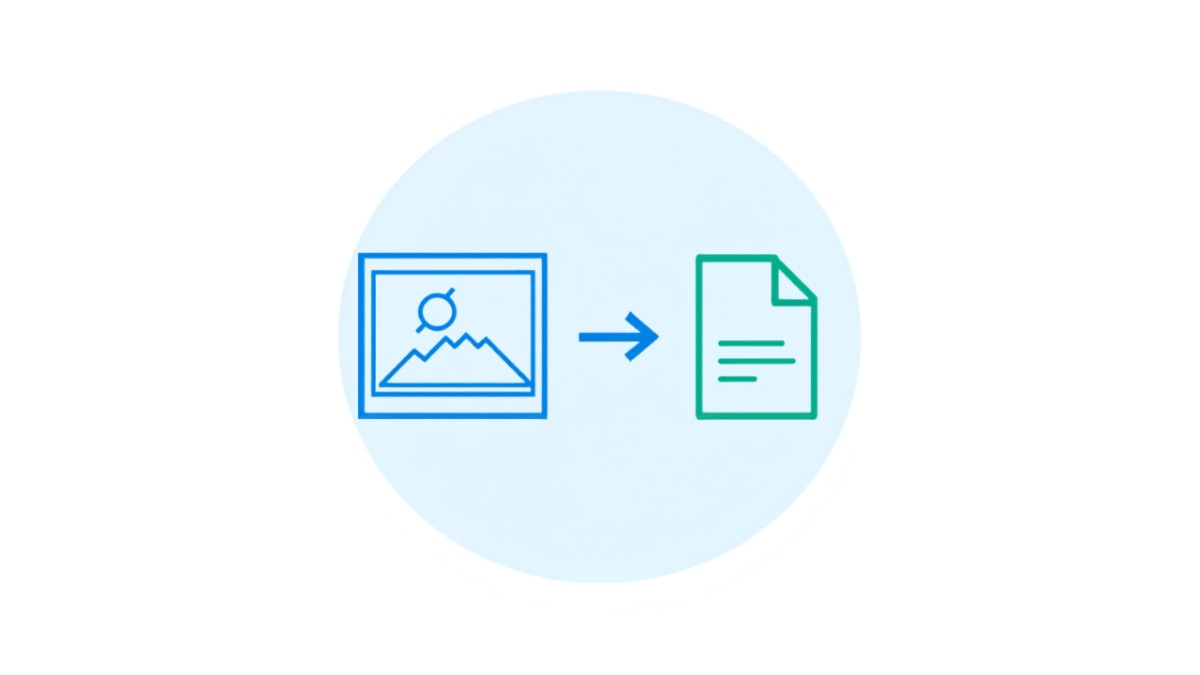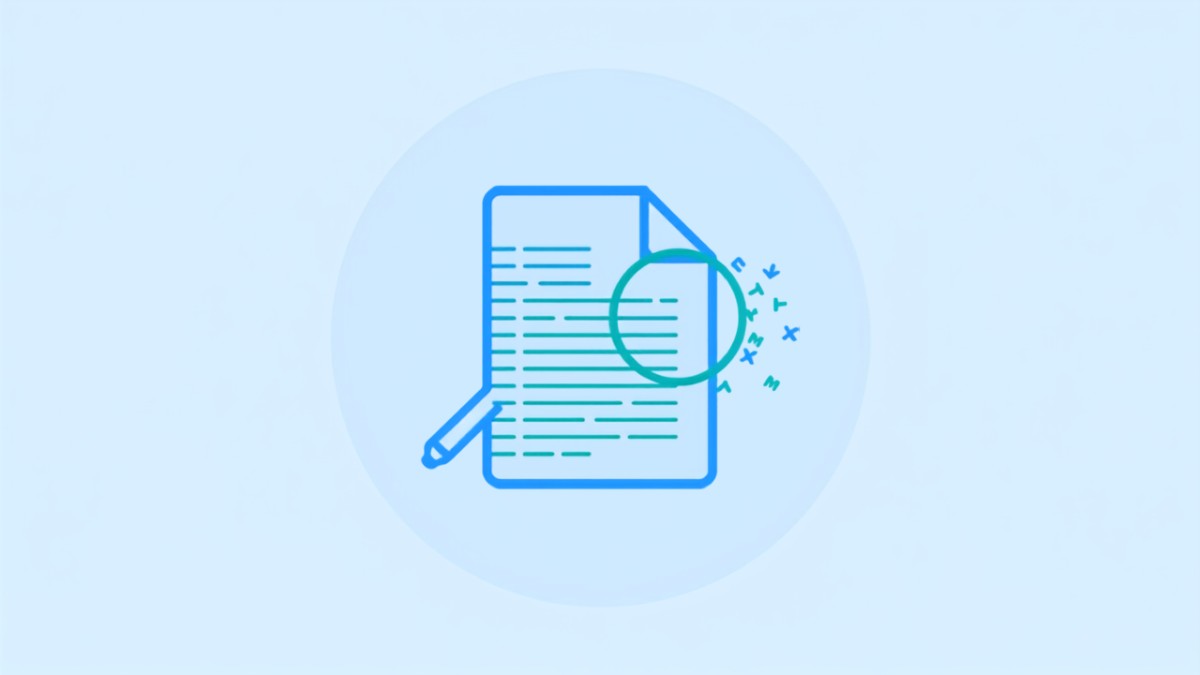
A scanned PDF is just a picture of a page, not real text, which is why you cannot search it, copy a sentence from it, or highlight anything in it. The fix is running OCR (optical character recognition) on it, which turns those flat images into actual selectable, searchable text using a free tool like MergePDF.Pro.
This guide covers how to tell if your PDF actually needs OCR, how to run it for free in your browser, and what to do afterward if you also need the text in an editable Word document.
Key Takeaways
- If you cannot select text in a PDF by clicking and dragging, it is a scanned image and needs OCR.
- MergePDF.Pro adds a searchable text layer to a scanned PDF for free, in the browser, in seconds.
- OCR does not change how the page looks, it just makes the existing text selectable and searchable underneath.
- OCR accuracy depends on scan quality, clean, high-resolution scans convert far more accurately than blurry photos.
How to Tell If a PDF Actually Needs OCR
Step 1: Try to Select Text in the PDF
Open the PDF and try to click and drag to highlight a sentence. If nothing highlights, or your cursor does not turn into a text-select icon, it is a scanned image.
Step 2: Try Ctrl+F or Cmd+F
Search for a word you can see on the page. If the search finds nothing, there is no real text underneath, only a picture of it.
Method 1: Run OCR Using MergePDF.Pro (Free, Browser-Based)
This works on any device, since it runs entirely in your browser.
Step 1: Open the OCR PDF Tool
Go to mergepdf.pro/ocr-pdf.
Step 2: Upload Your Scanned PDF
Click Upload OR Drag Files and select the scanned PDF.
Step 3: Run OCR
Click OCR PDF. Processing takes a few seconds to a minute depending on the number of pages.
Step 4: Download the Searchable PDF
Click Download File. The PDF looks identical to the original, but the text is now selectable and searchable.
What to Do After OCR
Once your scanned PDF has real, searchable text, you can do things that were impossible before: search for a keyword across a long scanned contract, copy a paragraph into an email, or convert it to an editable Word document using PDF to Word without the formatting breaking.
What Affects OCR Accuracy
| Scan Quality | Expected OCR Accuracy |
|---|---|
| Clean, high-resolution flatbed scan | Very high, close to perfect |
| Phone photo, good lighting, flat page | High, minor errors possible |
| Phone photo, angled or shadowed | Moderate, some words may need manual correction |
| Blurry, low-resolution, or handwritten | Low, expect noticeable errors |
Frequently Asked Questions
What is OCR, exactly?
OCR stands for optical character recognition. It analyzes the shapes of letters in a scanned image and converts them into actual text characters, which is what makes a PDF searchable and selectable.
Will OCR change how my PDF looks?
No. The visible page stays exactly the same. OCR adds an invisible text layer underneath the image so it becomes searchable and selectable, it does not alter the appearance.
Can OCR read handwriting?
Standard OCR is built for printed text and struggles with handwriting. Clearly printed documents convert far more reliably than handwritten notes.
Does OCR work on documents in other languages?
OCR engines generally support a wide range of languages, though accuracy is highest for languages with common Latin-based alphabets and well-scanned source documents.
Is it safe to run OCR on a confidential scanned document online?
Yes. Files are transferred over an encrypted connection and deleted automatically from the server after processing.
Conclusion
A scanned PDF you cannot search or copy from is one of the most common everyday document problems, and OCR is the direct fix. MergePDF.Pro makes any scanned PDF searchable in seconds, free, in your browser.
Ready to make your PDF searchable? Open MergePDF.Pro and upload your file now.